

PS5 Disc Drive Not Reading Discs? Check the Disc and Drive
Need this part? We stock tested replacement parts with same-day UK dispatch and a 12-month warranty.
If your PS5 disc drive is not reading discs, try a clean, compatible disc that works in another console. Notice whether the PS5 accepts the disc, recognises its title and then starts it. Those are separate steps. A drive that does not accept a disc needs a different response from one that installs a game but cannot launch it. If a detachable drive has just been fitted, check the console model and the setup step before assuming the new drive has failed.
Last updated: November 25, 2026

Use the right disc as a control
Start with a compatible original disc and check that another disc is not already inside. Use the eject button normally if needed. If a disc is stuck or the slot resists, do not force another one in or pull the disc out with tools. Follow Sony’s instructions for your model or arrange service. A damaged slot or a disc held inside the mechanism is a reason to stop testing with discs you want to keep.
Use PlayStation UK’s disc troubleshooting to check the orientation. On a PS5 positioned vertically as Sony shows, the labelled side faces left when inserting it. Wipe fingerprints off the disc with a soft clean cloth, moving outwards from the centre towards the rim. If one disc fails, repeat with a compatible known-working PS5 or supported PS4 game disc. Burned discs and audio CDs are unsuitable controls. An unrelated disc type introduces another variable instead of isolating the fault.
Record where the sequence fails
| Stage | Observation to record | Next step |
|---|---|---|
| Insertion and ejection | The drive refuses, traps or fails to eject a disc. | Confirm normal orientation and whether another disc is inside. Stop if the slot jams. |
| Recognition | The console accepts a known-working disc but its title does not appear. | Compare a second supported disc and note any read error. Check drive setup if it is detachable. |
| Installation or launch | A title appears but installation repeatedly stops or the game does not launch. | Note the stage, the title and the precise message. Check the play or install problem separately from insertion. |
| Only one title fails | Other compatible discs are accepted, identified and launched. | Compare the suspect disc in another supported console if available before quoting a drive. |
Use the same basic check after restarting, and keep a note of whether the failure happens with a cold console or during a longer session. If installation stops at the same point with one title, record the progress point and whether that disc reads elsewhere. A digital game starting normally can help show that the console runs software. It gives no evidence that the optical drive can read a disc.
A useful cross-test keeps the disc type constant. If a game disc fails, try another known-working game disc of a supported type before substituting a film. A successful film test adds information, but it does not by itself settle a game-specific installation or launch problem. Record each result separately. If the drive makes repeated clicks or the disc comes out marked, stop rather than testing the rest of your collection.
At handover, bring the exact disc that reproduced the fault if it can be removed normally. Note whether the console recognised it previously. Ask the technician to check insertion, reading and ejection after the repair, using a known-working disc as well as your original example if it is undamaged.
Check the console group before ordering a drive
Write down the console model number before buying a drive. Sony’s UK detachable disc drive setup page identifies the CFI-2000 and CFI-7000 model groups and says an internet connection is required to pair a drive during setup. Follow the instructions published for the console in front of you. Do not assume that a detachable drive is a replacement for the integrated drive on an earlier PS5. If the newly fitted drive is not recognised, establish whether pairing completed before repeating disc tests.
The iFixit PS5 drive fault guide covers ejection, media and software as distinct possibilities. If all known-working discs fail, report whether the console accepts and ejects them, whether it shows a title, and whether it gives an error code. Keep a separate note if the fault began after a drive was fitted or the console was moved. You do not need to perform a factory reset before collecting those observations. If a support procedure could erase data, follow its backup instructions before selecting it.
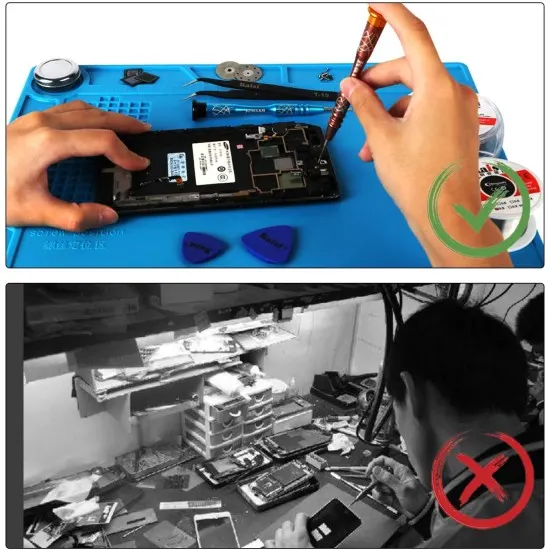
For other console faults, use Digi4u’s PS5 no-signal guide or the console parts guide. A repair bench mat is for service work; checking a disc does not require dismantling the system.
What to check after the PS5 shows the game title
If the game tile appears, write down whether the failure occurs as files are being copied from the disc, during a download, or after selecting Play. Record the wording on screen and whether it happens at the same point on another attempt with the same disc. For example, a game that lists its title and then reports insufficient storage calls for a storage check. Show the repairer the exact message if the PS5 repeatedly rejects multiple known-working discs during copying.
Sony’s disc guide also covers clearing the cache and rebuilding the database from Safe Mode after the basic disc checks. Use the options named by Sony and record whether the result changes. The separate Reset PS5 (Reinstall System Software) option erases the console’s data. Follow Sony’s backup and reinstall instructions before using it. If the slot jams, a disc comes out marked or a detachable drive has never completed setup, resolve that issue before repeating software troubleshooting.
PS5 disc reading questions
Does one unreadable game prove the drive is faulty?
No. Compare another clean, compatible disc and, if possible, test the suspect one in a working console before ordering a part.
Does a detachable PS5 drive need internet to set up?
Sony requires an internet connection to pair the supported detachable drive during setup. Check the console model and its support instructions first.
Why does the PS5 show the game title but fail to start it?
Initial recognition and starting a game are separate. Record the installation or launch message and compare the same disc on another compatible system if available.