


A PS5 that powers on while the TV shows “No Signal” does not automatically need a new HDMI port. First confirm the TV input, try another HDMI cable and display port, remove soundbars or capture equipment from the connection, and connect the console directly to the screen. If those checks fail, Safe Mode can help separate a video-setting problem from a connection or hardware fault.
Stop moving or wiggling the cable if the HDMI socket is loose, bent or visibly damaged. Continued leverage can make connector or board damage worse.
Start here:
- Confirm the selected TV input and test a known-working HDMI cable.
- Connect the PS5 directly to another display input, without a switch or soundbar.
- Use Safe Mode only after the external checks.
- Stop if the socket is loose, bent or angle-sensitive.
What does “PS5 no signal” mean in this case?
“No signal” means the display is not receiving a usable video signal. It is different from a PS5 that will not power on, a console that shuts down during play, or a picture that appears but flickers at a particular resolution. Note the power light, whether you hear normal startup sounds, whether the TV recognises an attached HDMI device, and whether the problem followed a move, cable pull or settings change.
That short record matters because a bad input selection, a failed cable, an incompatible video setting and a damaged console socket can look identical from the sofa.
Run the external checks in a controlled order
- Select the correct TV input. Confirm the numbered HDMI input matches the socket you used.
- Reseat both ends once. Turn the equipment off first, then reconnect without forcing or angling the plug.
- Try another HDMI cable. Use a cable already known to produce a picture with another device.
- Try another screen input. Move the cable to a different HDMI port and select that input.
- Remove the middle equipment. Connect the PS5 directly to the TV or monitor, bypassing a receiver, soundbar, switch or capture device.
- Power-cycle the setup. Sony’s current guidance says to switch off the screen and console, disconnect their power cables, wait 20 minutes, reconnect and test again.
If possible, test the console on a second TV or monitor. Change one item at a time and record the outcome; changing the cable, input and screen together may restore the image without revealing which component failed.
Use Safe Mode to test a display-setting problem
With the console fully off, press and hold the power button again. Release it after the second beep, which Sony says occurs about seven seconds after the first. Connect the controller with a USB cable and press the PS button.
If Safe Mode appears, start with Change Video Output and use Change Resolution or Change HDCP Mode where appropriate. Those options are designed for blank-screen troubleshooting. Avoid Reset PS5 or reinstalling system software as an early experiment: Sony warns that some Safe Mode options delete user data.
Inspect the HDMI connection without stressing it
With the console switched off and unplugged, use a light to look at the HDMI socket. Compare the connector tongue and pins with an undamaged reference. A bent tongue, displaced pins, a crushed shell or a socket that moves in the case needs professional inspection.
Do not force a plug into a deformed port, hold the cable at an angle to keep a picture, or insert a tool into the connector. An intermittent picture when the cable moves is useful diagnostic information, but repeating the movement can worsen physical damage.
What does each test result tell you?
| Result | Leading area to investigate | Next action |
|---|---|---|
| A different cable restores the picture | Original cable or its required capability | Replace the cable and test the desired resolution/refresh rate. |
| A different TV input works | Original screen input or its settings | Check the display manual, firmware and enhanced HDMI settings. |
| Direct connection works | Receiver, switch, soundbar, capture device or an additional cable | Reintroduce one component at a time. |
| Safe Mode appears | Video-output configuration or software | Use the non-destructive video options first. |
| No display on known-good cables and screens | Console HDMI connection or internal video path | Use PlayStation Repairs or obtain board-level diagnosis. |
| Socket is bent, loose or angle-sensitive | Physical HDMI connector or board attachment | Stop using the port and arrange professional inspection. |
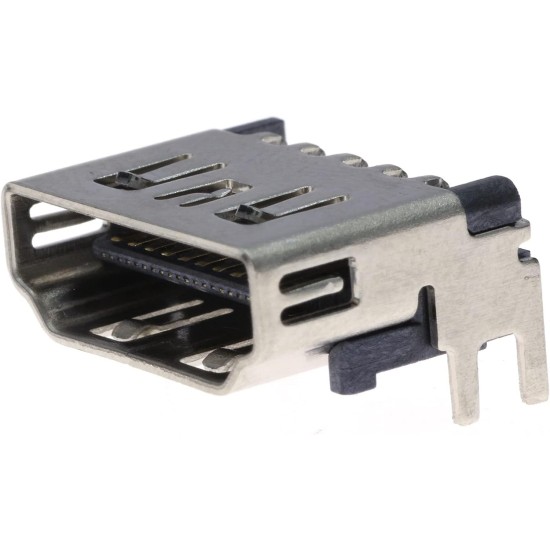
When an HDMI port part is relevant
A replacement socket is relevant only after diagnosis identifies physical connector damage or a failed connection that the part can correct. Replacing it requires console disassembly and board-level soldering; the same “No Signal” message can also have another cause. Digi4u lists a replacement HDMI port for PS5 for suitably equipped repair professionals, but the product should not be treated as a diagnosis.
| Situation | Reasonable next step | Stop condition |
|---|---|---|
| Cable, input or Safe Mode check | Suitable for a careful owner following the non-destructive steps above | Stop if a plug will not seat normally, the port moves, or damage is visible. |
| External inspection | Inspect only with the console off and unplugged; use no metal tool in the connector | Stop if debris cannot be removed without force or pins appear displaced. |
| HDMI socket replacement | Use a repairer with console disassembly, microsoldering and board-diagnostic capability | Do not buy the part as a speculative fix for an undiagnosed no-signal symptom. |
If the console is still under applicable warranty or you do not have board-repair equipment, use the official PlayStation repair route or a qualified repair provider. Give them the test record: cables, screens and inputs tried; whether Safe Mode appeared; and any visible or movement-related symptom.