

PS5 DualSense Controller Not Charging? Check the Cable, Port and Battery
Need this part? We stock tested replacement parts with same-day UK dispatch and a 12-month warranty.
If your PS5 DualSense controller will not charge, connect it directly to an awake PS5 with the supplied cable or a known-good compatible USB cable. Check whether the controller’s battery icon shows charging in the console’s Accessories panel. Repeat once with a different suitable cable and console port. A controller that only seems to fail overnight, or only disconnects when you unplug it, needs a different diagnosis from a controller that never shows charging.
Last updated: November 24, 2026
Keep the first test simple
Use the controller and console together, with the PS5 fully on and no third-party hub or charging station in the path. This gives you one known starting condition. Press the PS button and check the Accessories panel if the controller connects. PlayStation’s charging guide explains how to read the icon and what the light bar does when charging in rest mode. Test a second cable in the same port, then try another working console port if needed. Change one thing at a time so that a successful attempt tells you what helped.
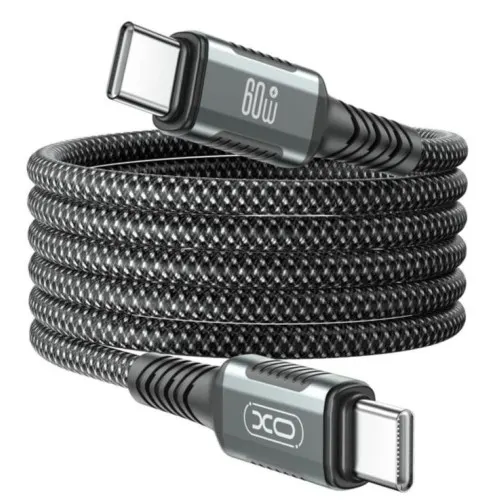
A cable that fits is not necessarily the right test cable. Start with the cable provided with the console. When trying another lead, use one specified for the function you are testing. Charging alone and USB communication are separate checks, as explained in Digi4u’s USB-C data cable article. If shopping for a spare lead, compare its connectors and supported functions on the listing, for example this USB-C data cable. The wattage printed on the lead does not diagnose a controller battery. The console port and the controller still determine how the connection behaves.
Read the result before replacing the battery
| What happens | What to check next |
|---|---|
| The controller charges while the console is on, but not in rest mode. | Confirm the PS5’s USB power settings for rest mode. Reproduce the issue with the same cable and port. |
| The controller works only with one cable. | Retire a visibly damaged cable. Confirm normal charging and connection with the working lead before suspecting the battery. |
| The connection drops when the plug is moved during ordinary use. | Stop moving the plug to make it work. Inspect the cable and port from the outside. Have a loose or damaged port assessed. |
| The icon shows charging, but the controller loses power soon after unplugging. | Let the console indicate the charge has completed and compare runtime during ordinary wireless play. If the result repeats with a stable charging connection, ask about a battery or power-path diagnosis. |
| The controller is charged but loses its wireless connection. | Confirm whether it has shut down or only become unpaired. Follow Sony’s pairing and software checks before ordering parts. |
Rest mode is a common source of misleading results. Open Settings, System, Power Saving, then Features Available in Rest Mode and check whether power is supplied to USB ports. Sony documents different options by console model. If a profile stops supplying power after a period or uses adaptive charging, the light bar alone may not tell you what happened overnight. Confirm the charge level in the console before comparing batteries.
If possible, compare with another known-working controller using the same cable and port. A working second controller narrows the investigation to the first controller and its connection. If both fail on the same port but charge with a different cable or console port, record that result before inspecting either handheld unit. For a runtime comparison, use similar game and controller settings across the two tests. Treat a short session as reproducible evidence only when charging was confirmed beforehand and the power loss can be repeated.
When to stop and when to ask for repair
If the controller is physically damaged, swollen, unusually hot, wet, or has a burnt smell, disconnect it if safe and stop charging it. Do not force the connector or try to flatten a lifting case. For a controller that looks intact, PlayStation’s DualSense support covers pairing, charge status and device software. Compare the same controller on a known-good cable and port, then note whether the problem follows the controller. Record which test reproduced the fault before opening anything.
Identify the exact controller first if a repairer recommends a battery. The iFixit UK DualSense battery listing specifies compatibility for particular standard DualSense revisions. It is not proof that a DualSense Edge or another revision uses that part. Ask the supplier or repairer to confirm the model and replacement compatibility. A short run time after confirmed charging is more useful evidence than a failure to pair. When the symptom is unintended stick movement instead, use Digi4u’s DualSense stick and module guide.
DualSense charging questions
Why does my DualSense only charge with the PS5 on?
Check the rest-mode USB power setting and compare performance with the same port and cable. An awake console rules out rest-mode power timing when you first test.
Does a flashing orange light mean the battery needs replacing?
On a compatible controller charging in rest mode, a slow orange flash can be normal. Check the battery reading and how the controller works after unplugging before deciding.
Can a charge-only lead be used for every test?
It cannot confirm USB data or pairing. Use the supplied lead for a combined test, or a compatible replacement explicitly specified for data as well as charging.