


Face ID Not Working After a Screen Replacement: Why It Fails and How to Avoid It
Need this part? We stock tested replacement parts with same-day UK dispatch and a 12-month warranty.
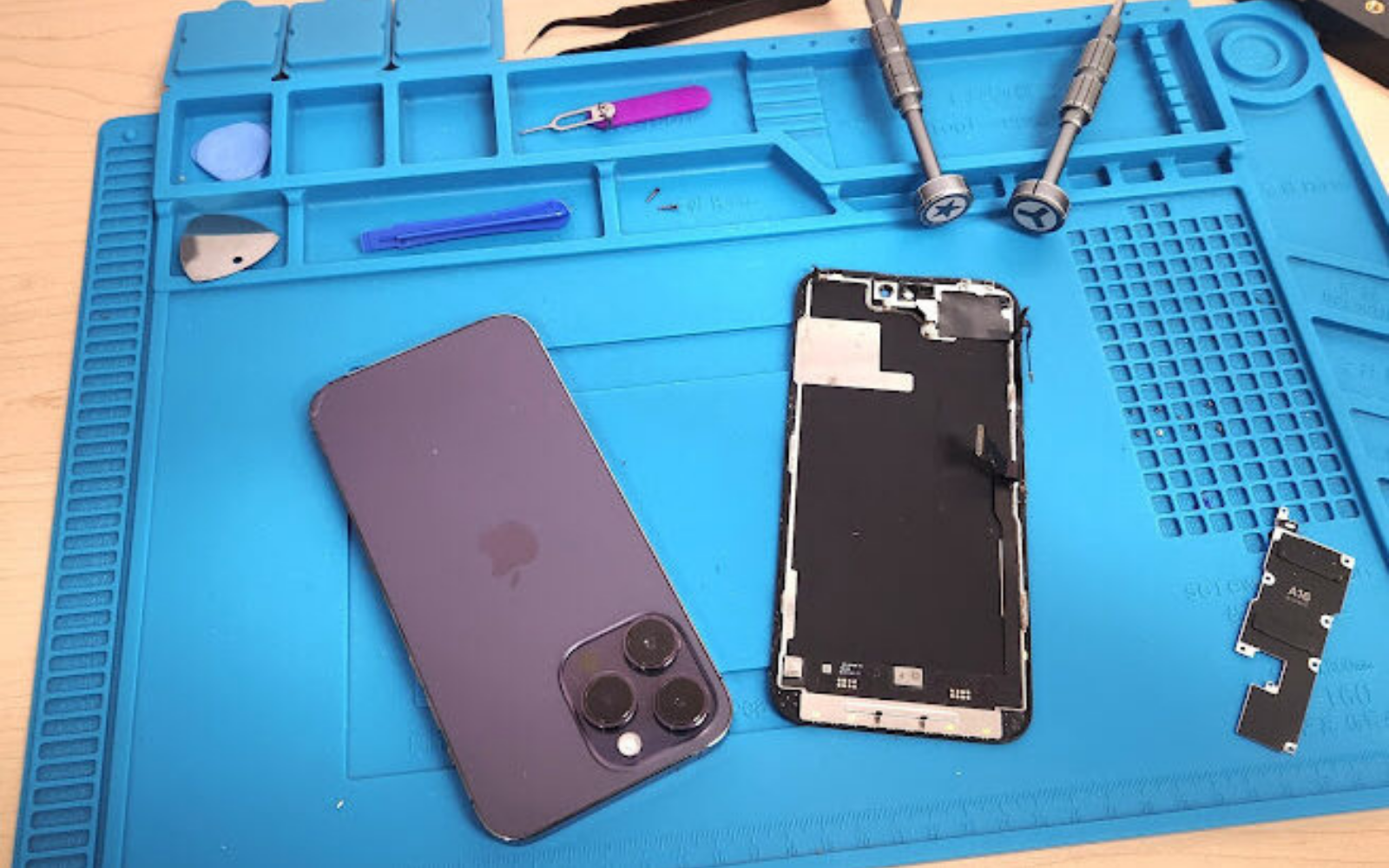
Face ID not working after screen replacement is usually caused by an obstruction, an incomplete calibration, a loose connector, poor TrueDepth alignment or physical damage during removal. Test the iPhone before opening it, protect the original paired hardware, diagnose the fault while the device remains open and complete any required Repair Assistant steps before sealing it.
Last updated:
Why Face ID fails after a screen swap more than any other repair
Face ID screen repairs carry unusual risk because the TrueDepth assembly sits in the display area being disturbed. Its connections and brackets occupy the same space through which the display must be opened, supported and disconnected. Pulling, twisting or lifting the screen too far can therefore affect hardware that was working when the phone arrived.
The TrueDepth system projects and analyses thousands of invisible dots to create a depth map, while also capturing an infrared image of the face. A portion of the Neural Engine inside the Secure Enclave compares that information with the enrolled Face ID data. This is not simply a conventional selfie camera that can be swapped without consequence.
The practical rule is to preserve and carefully transfer the phone’s original paired TrueDepth and flood-illuminator hardware. Fitting a random module from another phone does not restore Face ID on models for which Apple has not documented used-part pairing. That asymmetry makes prevention, arrival testing and accurate fault diagnosis particularly important.
Why does Face ID stop working after a screen replacement?
Start with the least invasive explanations. Dirt, a smudge, a badly positioned case or a screen protector can block the TrueDepth camera. Face ID also depends on iOS settings and may require an update, restart or fresh enrolment. Apple recommends checking Settings > Face ID & Passcode, removing obstructions and following its official steps for troubleshooting Face ID.
If Face ID worked before opening the phone but failed immediately after the screen swap, inspect the repair area. A connector may not be fully seated, the assembly may be displaced in its bracket, or a flex or optical component may have suffered physical damage. Do not assume that every post-repair failure is permanent, but do not repeatedly force enrolment when the hardware clearly needs inspection.
Face ID generally works best with the iPhone about 25–50 cm from the face. It needs a clear view of the face, or of the eyes when Face ID with a Mask is used on a supported model. Recognition that fails only at an unusual angle or distance should be retested under normal conditions before the phone is reopened.
What part of the Face ID system actually breaks?
The relevant components include the dot projector, infrared camera and flood illuminator, together with their flexes, connectors and physical alignment. The visible front camera may still produce a normal picture while Face ID is unavailable because the two functions are not the same. Conversely, a soft or hazy selfie image can be an installation issue rather than proof of TrueDepth failure; use the separate guide to a blurry front camera after screen replacement for that diagnosis.
| What the customer sees | Likely cause | Realistic next step |
|---|---|---|
| Recognition is unreliable or enrolment behaves inconsistently | Protector, dirt, blocked face, outdated iOS or software state | Clean and uncover the TrueDepth area, update iOS, restart, check Face ID settings and try Reset Face ID if enrolment remains available. |
| Face ID becomes unavailable directly after the repair | Connector not fully seated | Power down, reopen carefully, inspect and reseat the relevant connection, then test before sealing. |
| Face ID works only at certain angles or intermittently | Module or bracket out of alignment | Check that the original assembly is correctly positioned and that no foam, adhesive or bracket is shifting it. |
| Face ID remains unavailable after connections and alignment are verified | Physical damage to the dot projector, infrared camera, flood illuminator or flex | Stop repeated disassembly and obtain a model-specific specialist assessment; recovery cannot be promised. |
| Parts and Service History shows Finish Repair | Required calibration has not been completed | Use Repair Assistant with current iOS, Wi-Fi and sufficient battery, then retest Face ID. |
| A Face ID Issue or Unknown label appears | The part may be non-genuine, previously used, modified, unverified, not working as expected or incompletely calibrated | Read the precise device message, complete any available calibration and inspect the hardware if Face ID remains unavailable. |
Can Face ID be repaired if it is damaged?
A loose connection or displaced assembly may be recoverable by careful refitting. Physical damage is less predictable. A torn flex can sometimes be assessed by a specialist using microsoldering or newer flex-based approaches, but results vary by model, damaged component and condition. The industry’s no-solder Face ID repair methods are an option to investigate, not a guaranteed restoration.
Do not promise that a donor module will solve the fault. The original paired hardware normally needs to be preserved, except where Apple specifically documents supported used-part calibration. Apple states that, on iPhone 16 and later, a front camera taken from another iPhone of the same model can display Used after calibration completes. That does not establish donor-part support for older models.
If setup repeatedly fails after software checks, correct seating and any required calibration, the device needs hardware inspection. Keep the diagnosis specific: “connection reseated but Face ID still fails” is more useful and defensible than declaring the whole system irreparable without specialist assessment.
What should you check before starting a Face ID screen repair?
Test Face ID on arrival and record whether unlocking and enrolment-related settings are available. Check the front camera, earpiece and proximity behaviour too, then note existing damage, previous repair messages and anything covering the sensor area. In Settings > General > About, iOS 15.2 and later may show Parts and Service History labels such as Genuine, Unknown, Used or Finish Repair.
Those messages do not usually prevent normal iPhone use unless the particular notice says otherwise, although an Unknown part may affect trade-in value. A notification can appear on the first unlock after repair and again five days later. Record what was present before work so that an existing warning is not confused with the new screen job.
Obtain clear pre-job consent. A concise note should say that Face ID was tested on arrival, that opening the display presents a small irreversible hardware risk, that the shop will inspect and reseat a connection if that proves to be the cause, and that physical TrueDepth damage requires a separate commercial conversation. For retail customers, the finished work remains subject to the Consumer Rights Act 2015.
How do you protect the TrueDepth module during removal?
Warm the display adhesive appropriately, open the phone from the edge intended for that model and keep the display supported rather than allowing it to hang from its flexes. Do not twist the assembly or pull it away while cables remain attached. Disconnect the required connections before lifting or transferring the relevant parts.
Keep tools away from exposed flexes and optical surfaces. Note the position of brackets, foam, adhesive and screws so that the original assembly returns to its correct location without pressure or obstruction. The safe sequence is procedural: support, disconnect, inspect, transfer and align. Rushing the first lift creates more risk than the remaining screen replacement.
What should you test before you seal the device?
Complete a short pre-seal quality-control check while reopening remains straightforward:
- Enrol and test Face ID with the phone still open, using a clear view at a normal working distance.
- Test the visible front camera for focus, clarity and stable operation.
- Check earpiece output and proximity behaviour during a call or suitable bench test.
- Review Parts and Service History for Finish Repair, Face ID Issue or an unexpected part label.
If the repair requires calibration, Apple’s Repair Assistant process installs the necessary calibration data. It requires Wi-Fi, the latest iOS and more than 20 per cent battery. Go to Settings > General > About > Parts & Service History > Restart & Finish Repair. Face ID or Touch ID may remain unavailable until a required repair is finished.
For a TrueDepth camera awaiting calibration, Face ID will not unlock the phone, authorise payments or sign in to apps. A Face ID Issue message does not itself prevent use of the iPhone or camera, but Face ID remains unavailable until incomplete calibration is resolved. If the proximity test fails, follow the dedicated post-screen-replacement proximity sensor checks before sealing.
What do you tell the customer?
Explain the observed state rather than guessing. Say whether Face ID worked on arrival, whether the phone reported an existing part message, which connections were checked and whether calibration completed. Distinguish a fixable seating issue from suspected physical damage, and never present specialist flex repair as certain.
Customers may also see Unknown when a part is not genuine, is not functioning as expected, has not been verified and linked after repair, or has been modified. If the display message is the concern, explain that it is separate from TrueDepth diagnosis and refer to the technical discussion of an Unknown Part warning and IC-chip transfer without promising that a transfer will resolve Face ID.
How does this interact with the screen you fit?
Screen choice can affect display behaviour, but screen grade or supplier cannot restore a physically damaged TrueDepth system. Apple notes that a non-genuine display may cause Multi-Touch faults, True Tone problems or failure to turn the display off during calls. Those symptoms warrant display and installation checks; they do not prove that the Face ID hardware has failed.
Choose the appropriate replacement from the available iPhone screen range, transfer the original required assemblies carefully and perform the same pre-seal tests regardless of panel grade.
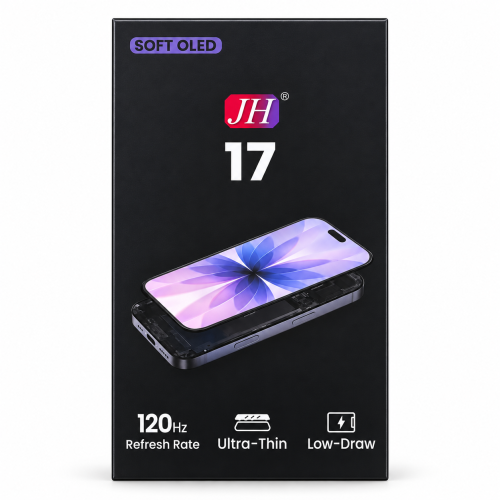
This panel is a screen component, not a Face ID remedy. If the original TrueDepth connection is loose, reseating it may restore operation; if the system needs calibration, Repair Assistant may complete the job; if paired hardware is physically damaged, changing the panel cannot repair it.
How do you price the risk on a Face ID model?
Build the risk into the quotation process as a disclosed condition, not an unsupported promise or invented surcharge. Record the arrival test, explain the small irreversible risk, define the free diagnostic action you are offering after the job and reserve any response to confirmed physical damage for a separate discussion.
A practical consent note is: “Face ID has been tested on arrival. Screen removal carries a small risk to the TrueDepth hardware. If Face ID fails because a connection has moved, we will reopen the device, inspect it and reseat the connection. Suspected physical damage to the module will require separate assessment and a commercial discussion.”
This wording does not remove statutory responsibilities or predetermine liability. It establishes the starting condition, sets realistic expectations and makes the immediate recovery process clear. The strongest protection for both technician and owner remains careful removal, preservation of original hardware and documented testing before and after the repair.
Frequently asked questions
Why is my Face ID not working after a screen replacement?
The TrueDepth area may be obstructed, a connector may be loose, the module may be misaligned, calibration may be unfinished or a flex or optical component may be damaged. Clean and uncover the sensor area, check iOS and Face ID settings, review Parts and Service History, then inspect the repair connections before assuming permanent damage.
How do I reactivate Face ID after a screen replacement?
Update iOS, restart the phone, remove anything covering the TrueDepth camera and check Settings > Face ID & Passcode. If available, reset Face ID and enrol again. When Parts and Service History shows Finish Repair, complete Repair Assistant using Wi-Fi, the latest iOS and more than 20 per cent battery.
Can Face ID be fixed if the TrueDepth module is damaged?
Loose connectors and alignment faults may be corrected, while some damaged flexes can be assessed by specialists using microsoldering or model-specific no-solder methods. Results vary and cannot be guaranteed. A random donor module will not restore Face ID on models where Apple has not documented supported used-part pairing and calibration.
Does a replacement screen itself break Face ID?
The panel itself does not restore or directly control Face ID, but the removal and transfer work takes place beside sensitive TrueDepth hardware. Pulling the display, damaging a flex, misaligning the assembly or leaving a connector loose can cause failure. Screen grade or supplier cannot repair a damaged TrueDepth system.
What should I test before sealing an iPhone after a screen swap?
Enrol and unlock with Face ID while the phone remains open, test the visible front camera, and check earpiece and proximity behaviour. Review Parts and Service History for Finish Repair or a Face ID Issue, complete any required Repair Assistant calibration, and resolve loose connections or alignment problems before applying the final seal.
Parts staging for TrueDepth and front-camera flexes — and the honest limits of what a swap can restore — is covered in iPhone front camera and Face ID flex parts.