

Steam Deck Fan Noise: What to Check Before Replacing the Fan
Need this part? We stock tested replacement parts with same-day UK dispatch and a 12-month warranty.
Steam Deck fan noise can rise when a game places more load on the hardware. Start by comparing the same game scene and the same settings, with the vents clear, then check whether the sound settles when the workload ends. A rush of air and a repeated scrape are different symptoms. If you get a heat warning, repeated shutdowns, a burning smell or signs of swelling, stop testing and seek service. Buying a fan before recording the symptom makes it harder to know whether the replacement helped.
Last updated: November 25, 2026

Make a repeatable baseline
Set the Deck on a firm surface with clear space around the vents. If a case or stand overlaps an opening, remove it or change position before testing. Note whether the unit is charging or docked, which game is running and whether installs or downloads are active. A soft cushion or a protective case used as a stand can change airflow. A quiet room also makes a steady tone more noticeable, so compare in the same room when you can.
For a safe comparison, first listen at the SteamOS home screen once background activity has settled. Then play a scene that reliably brings on the sound and exit it to see whether the fan eases. Do not keep the Deck running to deliberately reproduce overheating. Valve’s troubleshooting and care guide recommends checking for system updates and restarting for general issues. It also advises against compressed air at the fan and heatsink vents and recommends a dry cloth rather than liquid around openings.
Separate sound from heat and performance
| Observation | What it helps you decide |
|---|---|
| Even airflow increases during a demanding scene and eases after exit | Compare the workload and settings before ordering a fan. |
| Noise increases on a stand or in a particular case | Clear the vents and repeat the same scene on a hard surface with the same power and display setup. |
| A scrape, rattle or buzzing returns during light use | Record it from outside the case and note when it starts. Have the source assessed rather than guessing from pitch alone. |
| Unusual noise coincides with a heat warning or shutdown | Stop the test. Include the warning or shutdown details when contacting support. |
Change one setting at a time. If the game lets you use a lower frame rate or less demanding graphics, compare the same scene with that single adjustment and restore your original setting if it makes play worse. A quieter result under a lighter load is useful context. It does not prove the cooling system is free from faults. When a noise is mechanical or present during light use, avoid treating a frame rate limit as a repair.
If the result is hard to describe, keep a simple record with three observations: sound at rest, sound during the same game scene and sound after returning to the home screen. Add whether the air openings were clear and whether a dock or charger was connected. Use words such as steady air, oscillating buzz, tick or scrape. A repairer can use the pattern to choose a test, but sound alone will not distinguish a fan bearing from something touching the housing.
Keep external checks separate from internal service. A different fan design does not upgrade every Deck, and the correct part must match the unit and its revision. If the Deck is new or an earlier repair may still be covered, contact the seller or Valve before authorising a part change. Describe the reproducible symptom and seek the service route appropriate to your device.
Confirm the model and revision before buying a fan
Check whether your Deck is LCD or OLED. The iFixit Steam Deck LCD fan guide describes revisions with different internal fan shapes. The OLED fan guide has a separate procedure. Valve has also described the fan variants used in LCD units. A noise recording cannot identify the right fan. Ask a repairer to confirm the revision and part against the correct guide if the outside label and purchase details are insufficient.
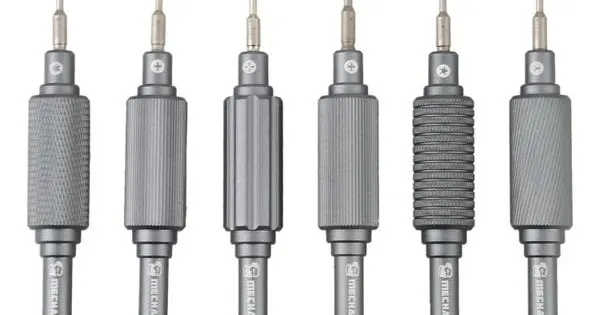
Give the technician a short recording, the game and scene, the power setup and what happened after exiting the game. Note whether a case was fitted, whether the sound used to be different and whether the console has been opened before. If you can reproduce a normal airflow sound safely, that recording can be a useful comparison. For other Deck problems see Digi4u’s screen fit notes and controller input tests. Bench equipment such as a precision driver kit must be checked against the device-specific tool list before you use it.
Compare the result after a restart or repair
For a sound that starts in Desktop Mode or on an external screen, repeat the test in handheld mode with the Deck undocked and any downloads finished. Use the built-in display and a steady workload you can reproduce. Change one condition at a time if handheld mode is quieter. For example, compare the same scene and frame-rate setting before changing the display or power connection. Write down which change brought the sound back so a repairer can try that condition first.
If a fan has just been replaced, ask the repairer to run the same workload and compare with your original recording. Check how the sound changes during the scene and after returning to the SteamOS home screen. If a rattle remains or a warning recurs, end the test and give the repairer the exact conditions. When comparing replacement listings, ask the supplier to confirm the connector, mounting points and revision of the part. A photograph or written fitment confirmation is more useful than a promise that the fan is quiet.
Steam Deck fan questions
Is a louder fan during a demanding game automatically faulty?
No. Compare the same scene, room and settings. A sound that falls back after exiting the game should be evaluated differently from a scrape or rattle that continues during light use.
Can I identify the fan revision by sound?
No. Confirm LCD or OLED and the specific hardware revision. If you cannot identify it without opening the console, ask a repairer or use the appropriate service documentation.
Can I blow compressed air into the vents?
Valve advises against it around the fan and heatsink vents. Start with unobstructed airflow and external dry cleaning as described in Valve’s care guide.