


A USB-C cable can charge a phone and still be the wrong cable for transferring files. The connector shape does not tell you its data speed, video support or charging capability. Start by checking the written specification, then test the same cable with a known-working computer port and device before blaming either socket.
If the cable is unmarked and the computer never detects the device, a second known data cable is the quickest useful comparison. One successful charge is evidence that power is reaching the device; it is not proof that the cable carries data.
Key checks:
- Confirm that the listing states data support, not charging alone.
- Test the same phone and computer port with a known data cable.
- Treat data speed, charging wattage and video support as separate capabilities.
Does every USB-C cable transfer data?
Two cables with identical USB-C plugs can support different functions. USB-IF, the organisation behind USB specifications, states that cables are certified for different purposes and that users must select a cable with the capabilities required for their setup. Its current marking rules distinguish power capability from data rate: a 60W or 240W power mark does not, by itself, state a data speed.
A cable may support basic USB 2.0 data at up to 480Mbps, a faster USB data mode, USB Power Delivery, display output, or a particular combination. Apple provides a useful real-world example: its USB-C Charge Cable supports charging and USB 2.0 data, but not video, while its Thunderbolt 3 cable supports much faster data and compatible displays. The lesson is to read the capability, not infer it from the plug or the word “charging”.
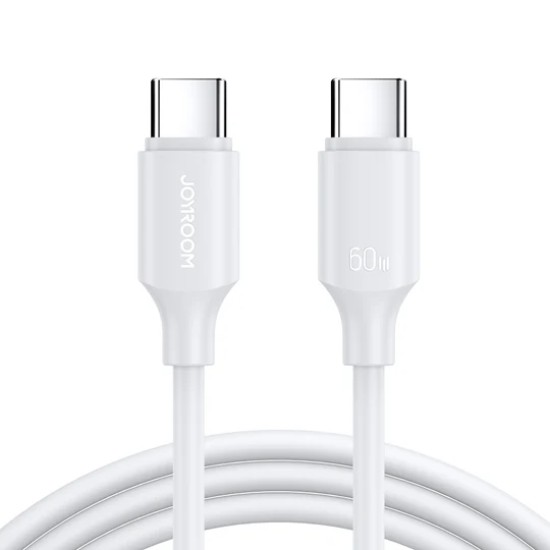
Use this five-part check before replacing anything
| Check | What to look for | What the result means |
|---|---|---|
| 1. Intended task | File transfer, backup, external storage, docking or video | Each task may need a different data standard; “fast charging” is not enough information. |
| 2. Cable specification | A stated USB data rate such as 480Mbps, 5Gbps, 10Gbps or higher | A stated rate is more useful than cable thickness, colour or connector appearance. |
| 3. Device support | The phone, computer and accessory manuals list the required USB mode | The connection can only use features supported by every part of the chain. |
| 4. Controlled comparison | The same ports and devices work with a known data cable | If the replacement works, the first cable is the leading suspect. |
| 5. Connection prompt | The phone offers file transfer, photo transfer or a similar USB option | If the device is detected but remains in charge-only mode, the cable may be fine and the selected USB mode may be the issue. |
Run a controlled cable test
- Unlock the phone or tablet and connect it directly to a computer, without a hub or dock.
- Use a computer port already known to transfer data with another device.
- Look for a USB notification on the phone and select the appropriate file-transfer option if prompted.
- Check whether the device appears in the computer’s file manager or device list.
- Repeat the same test with a known-working data cable, changing only the cable.
If both cables fail, test another computer port and inspect both sockets for lint, damage or looseness. Do not insert metal tools into a powered USB-C port. If the connection drops when the plug moves, stop forcing it; the socket or connector may be physically damaged.
What does each test result mean?
- The second cable works: replace or relabel the first cable. It may be charge-focused, damaged or below the data capability your task requires.
- The computer detects the phone but no files appear: unlock the device, select the correct USB mode and check the phone manufacturer’s file-transfer instructions.
- Neither cable works in one computer port: try a known-working port before diagnosing the phone.
- Neither cable works on multiple known-good hosts: the device port, software setting or hardware needs further diagnosis.
- Basic transfer works but a monitor or fast drive does not: check for the required video mode or higher data standard. Basic USB data does not prove video support.
Choose a replacement cable by the job it must do
For ordinary phone file transfer, confirm that the listing explicitly states data support. For an external SSD, dock or monitor, match the cable to the data rate and video capability required by both devices. For charging, separately match the cable’s power rating, charger protocol and the device’s supported input.
Digi4u’s USB-C cable collection includes charging and data cable listings. Read the individual product specification rather than assuming every cable in the collection has the same capabilities.