

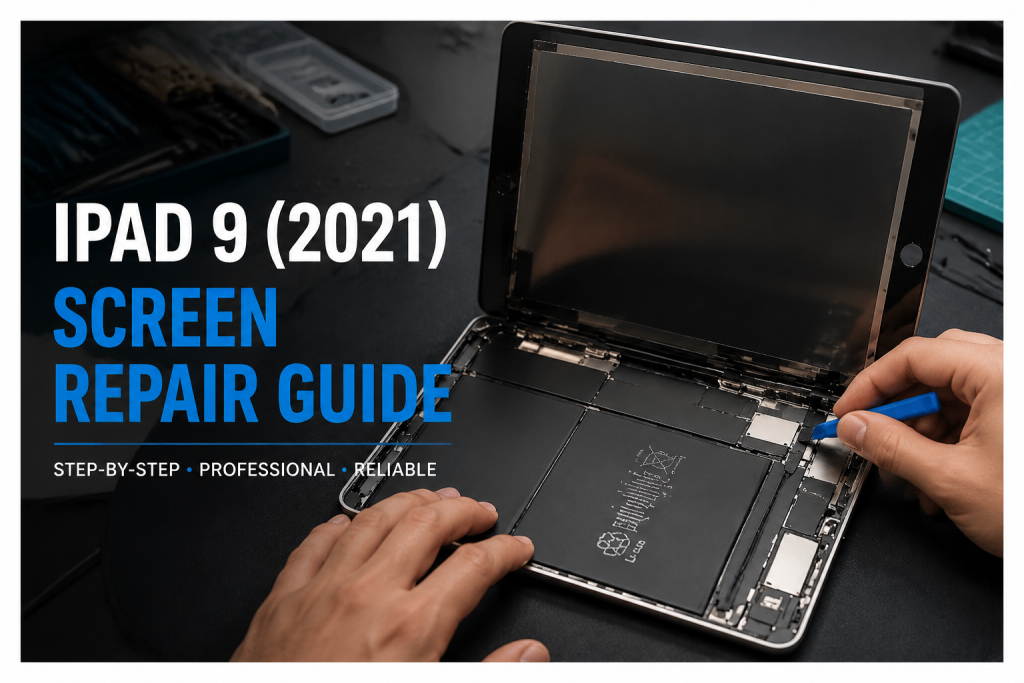
How To Repair iPad 9 (2021) Screen——Professional Guides
Need this part? We stock tested replacement parts with same-day UK dispatch and a 12-month warranty.
Posted on by digi4u
Overview of iPad 9 Display Structure
The iPad 9 (2021) uses a strongly bonded LCD and digitizer assembly. In most repair cases, technicians replace the full screen assembly rather than separating the glass and LCD layers.
Display structure includes:
- Outer glass (cover glass)
- Touch digitizer layer
- LCD panel
- Backlight unit
Because the layers are heavily laminated, glass-only separation is not recommended for most repair shops due to high LCD damage risk.
Professional Fault Diagnosis
2.1 Cracked glass, normal display
Symptoms:
- Visible cracks on glass
- LCD image is clear
- Touch is fully functional
Diagnosis:
✔ Only outer glass/digitizer damage
✔ LCD is healthy
Recommended repair:
- Full screen replacement (preferred)
- Glass-only separation only for advanced microsoldering-level technicians
2.2 Black screen but device is on
Symptoms:
- Device powers on normally
- No visible display
Diagnostic steps:
- Check backlight with flashlight test
- Verify sound/vibration response
- Inspect LCD flex connection
- Test with known-good screen
Possible causes:
- LCD failure
- Loose or damaged display connector
- Rare logic board display line issue
2.3 Touch failure
Symptoms:
- Display works normally
- Touch input unresponsive or inconsistent
Technical checks:
- Inspect digitizer FPC connector pins
- Check for oxidation or contamination
- Swap test with known-good screen
Common causes:
- Connector damage
- Low-quality replacement digitizer
- Improper seating during installation
2.4 Ghost touch / random input
Symptoms:
- Screen triggers input without touch
- Random scrolling or app opening
Root causes:
- Digitizer voltage instability
- Poor-quality aftermarket screen
- Frame deformation causing pressure points
- Electrostatic discharge (ESD damage)
Professional tip:
Always test the screen outside the frame before final installation to isolate hardware vs structural pressure issues.
Required Professional Tools
Basic tools:
- Temperature-controlled heating pad (80–90°C recommended)
- Plastic opening blades (thin + ultra-thin)
- Suction cup
- Anti-static wrist strap
Advanced tools:
- Digital multimeter (continuity testing)
- DC power supply (leakage detection)
- Microscope (connector inspection)
- Adhesive removal tools
Safe Screen Opening Procedure
Step 1: Controlled heating
Heat the edges evenly at 80–90°C. Avoid overheating a single corner as it may warp the frame or damage the LCD.
Step 2: Initial screen separation
Start from the top-right corner, where adhesive is typically weaker. Insert a plastic blade at a shallow angle (below 30°).
Never force separation—reheat if resistance increases.
Step 3: Internal cable awareness
Be extremely cautious near:
- Display flex cable routing area
- Battery connection zone
Pulling the screen too far before disconnecting cables can permanently damage flex lines.
Step 4: Battery isolation sequence
Correct order:
- Disconnect LCD flex
- Disconnect the digitizer flex
- Disconnect the battery last
An incorrect sequence may cause short circuits or backlight IC damage.
Screen Replacement Procedure
5.1 Frame preparation
- Remove all old adhesive completely
- Clean frame using ≥99% isopropyl alcohol
- Inspect for bending or warping
Frame flatness is critical for preventing ghost touch issues.
5.2 Connector inspection
Before installing a new screen:
- Inspect all FPC connectors under magnification
- Check for bent pins or corrosion
- Ensure connectors are fully clean and aligned
5.3 Pre-installation testing
Always test the replacement screen before sealing:
- Full brightness test
- Multi-touch accuracy test
- White/black screen uniformity test
- 5–10 minute stability check
Never skip this step.
5.4 Final installation and sealing
- Use high-quality adhesive strips
- Align the screen carefully without stress
- Press evenly from the center outward
- Avoid edge-only pressure application
Uneven pressure may lead to future lifting or touch instability.
Common Technician Errors
- Skipping pre-install testing
- Overheating LCD during removal
- Ignoring frame deformation
- Poor connector seating pressure
- Reusing old adhesive
- Pulling screen before cable disconnection
Quality Control Checklist (Final QC)
Before returning the device:
- Full multi-touch responsiveness
- No ghost touch after idle test
- Stable brightness without flicker
- No dead pixels or color distortion
- Proper frame sealing (no gaps)
- Charging + screen simultaneous operation test
UK Repair Cost Reference
| Repair Method | Estimated Cost | Notes |
| Apple official repair | £200–£300+ | Full unit replacement service |
| Third-party repair shop | £120–£180 | Standard aftermarket parts |
| DIY repair | £40–£90 | Parts only, skill-dependent |
Professional Insights
Most iPad 9 screen repair failures are not caused by the replacement screen itself, but by:
- Improper installation pressure
- Frame deformation not corrected before assembly
- Poor connector contact
- Low-quality aftermarket panels
Screen quality plays a role, but installation precision is the dominant factor in long-term stability.
Conclusion
iPad 9 screen repair is a moderate-to-advanced level procedure requiring careful thermal control, connector handling, and strict testing discipline.
Success rate depends more on technician skill and process control than on tools alone.
Proper diagnostics, a clean installation workflow, and pre-sealing testing are key factors in determining repair quality and long-term reliability.
Looking for reliable iPad 9 screen replacement parts, tools, and repair kits?
Visit our official store for high-quality components trusted by repair professionals across the UK.
👉 www.digi4u.co.uk
Visit our official store for high-quality components trusted by repair professionals across the UK.
👉 www.digi4u.co.uk