

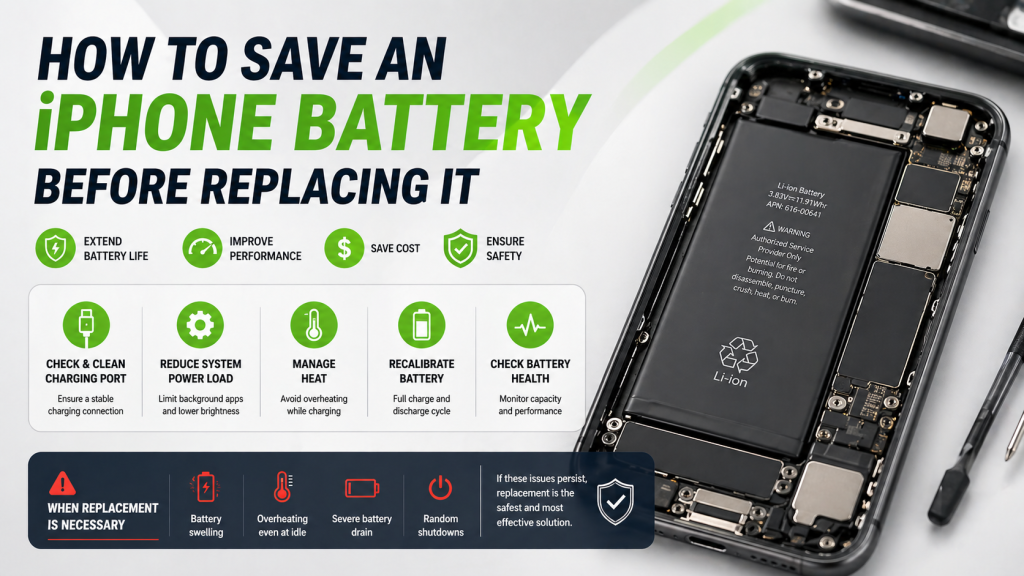
How to Save an iPhone Battery Before Replacing It
Need this part? We stock tested replacement parts with same-day UK dispatch and a 12-month warranty.
Posted on by digi4u
Practical Solutions for Overheating and Minor Battery Issues
In daily repair work, not every iPhone battery issue immediately requires a replacement. Many cases of overheating, fast draining, or unstable charging are actually caused by secondary factors rather than true battery cell failure.
Before recommending a battery replacement to customers, it is both cost-effective and professional to attempt a series of diagnostic and recovery steps. In this article, we’ll walk through practical methods to stabilize and potentially restore an iPhone battery — and identify when replacement becomes unavoidable.
Understanding “Minor Battery Faults”
A battery doesn’t need to be swollen or completely dead to show signs of failure. In real repair scenarios, early-stage battery issues often present as:
- Device overheating during normal use or charging
- Rapid battery drain without heavy usage
- Sudden percentage drops (e.g., 30% → 10%)
- Slower charging speed or intermittent charging
- Device throttling performance unexpectedly
These symptoms are commonly linked to increased internal resistance, battery aging, or system mismanagement, rather than catastrophic battery damage.
Step 1: Rule Out Non-Battery Causes
From a technician’s perspective, the first priority is to avoid misdiagnosis.
Check Charging Components
- Inspect the charging port for dust, corrosion, or liquid residue
- Test with a well-known cable and adapter
- Rule out unstable voltage input (a very common cause of overheating)
Evaluate Environmental Factors
- High ambient temperature can easily trigger thermal warnings
- Wireless charging often generates more heat than wired charging
- Heavy apps (gaming, video rendering) increase power draw significantly
In many cases, what appears to be a “battery problem” is actually power management stress.
Step 2: Reduce System-Level Power Load
Modern iPhones rely heavily on software-based power optimization. If the system is under constant load, even a healthy battery may overheat.
Recommended Adjustments:
- Disable background app refresh for non-essential apps
- Turn off location services for apps that don’t need it
- Reduce screen brightness and disable Always-On Display (if applicable)
- Check for abnormal battery usage in Settings → Battery
A key point for repair professionals:
If one app is consuming disproportionate power, it can mimic battery failure symptoms.
Step 3: Address Charging Heat Issues
Charging-related overheating is one of the most common complaints.
Practical Solutions:
- Avoid using the phone while charging
- Switch from fast charging to standard charging temporarily
- Remove thick or heat-trapping phone cases
- Clean the charging port carefully using non-conductive tools
From a hardware standpoint, battery heat during charging is often linked to current instability, not just battery degradation.
Step 4: Recalibrate the Battery (When Needed)
Battery percentage inaccuracies can create the illusion of battery failure.
Calibration Method:
- Drain battery to near 0% (device shuts down)
- Charge uninterrupted to 100%
- Keep charging for an additional 30–60 minutes
This process helps the system re-sync with the battery’s actual capacity readings.
Step 5: Check Battery Health Data
Use built-in iOS battery health or professional diagnostic tools.
Key Indicators:
- Maximum Capacity below 80% → performance degradation likely
- Peak Performance Capability warning → system throttling active
- Abnormal charge cycles vs usage pattern
For repair shops, combining system data with real-world symptoms gives a more accurate diagnosis than relying on percentage alone.
When Recovery Is No Longer Possible
Despite all efforts, some batteries cannot be stabilized.
Replace the Battery Immediately If:
- The battery is physically swollen
- The device overheats even in idle state
- Charging causes excessive heat consistently
- Battery drains rapidly even after optimization
- Device randomly shuts down under light load
At this stage, the issue is no longer “minor” — it indicates chemical degradation or internal damage.
Professional Insight: Why Replacement Is Sometimes the Only Solution
Lithium-ion batteries degrade over time due to chemical aging. Once internal resistance rises beyond a certain point, no software or external adjustment can reverse it.
Delaying replacement in such cases may lead to:
- Reduced device performance
- Increased risk of motherboard stress
- Potential safety hazards (in extreme cases)
Conclusion
Not every overheating or draining issue means the battery must be replaced immediately. A structured diagnostic approach can often stabilize the device and extend battery life, saving costs for customers and improving repair credibility.
However, knowing when to stop troubleshooting and proceed with replacement is equally important.
For repair professionals, the goal is not just to fix the device — but to make the right decision at the right time.