


USB-C Port Cleaning: What Works and What Damages the Phone
Need this part? We stock tested replacement parts with same-day UK dispatch and a 12-month warranty.
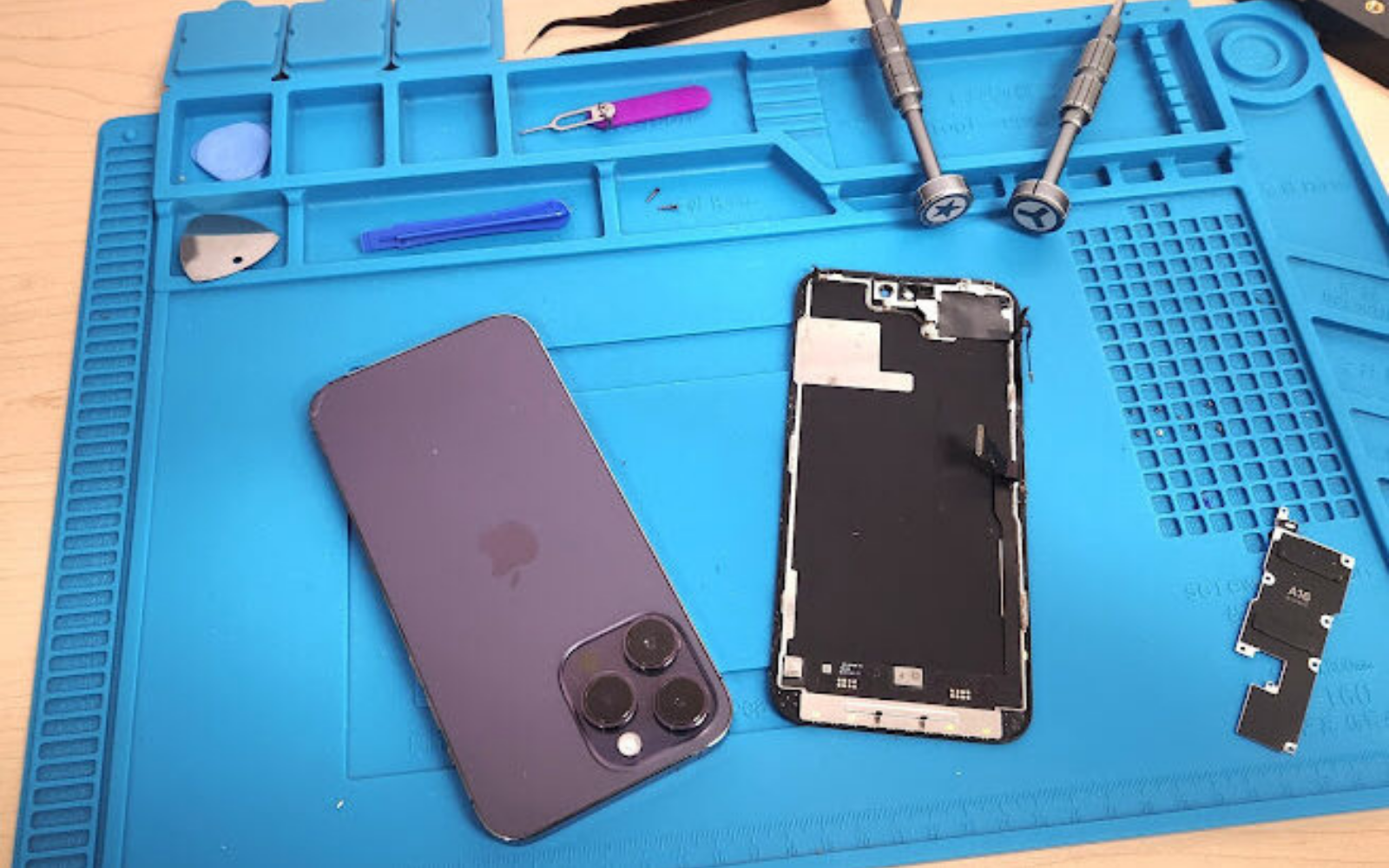
Lint and compacted debris inside a USB‑C socket mimic a failed charging flex in the majority of cases; a careful clean with the right tools resolves the fault without a part swap. Power the device off, inspect with a bright light, then lift debris from the side walls — never push toward the centre tongue where the pins sit.
Last updated:
Safe tools and what to avoid
Every technician’s kit should contain a plastic or wooden pick, a soft anti‑static brush, and a can of compressed air used in short bursts. Isopropyl alcohol (99 % IPA) on a lint‑free swab is acceptable only for corrosion residues on the contacts — never as a general cleaner. Metal pins, sewing needles, cotton buds that shed fibres, household liquids, and blowing with your mouth all risk bent contacts, short circuits, or residue that attracts more dust.
Store the plastic pick in a dedicated compartment so it never contacts metal tools; a bent tip can scratch the port’s inner wall. The anti‑static brush should be kept clean — wash it with warm water and a drop of mild detergent, then air‑dry before reuse. Compressed‑air cans must be held upright; tilting releases propellant liquid that leaves a sticky film. When using IPA, apply a single drop to the swab, not a soak, and allow the port to evaporate for at least two minutes before any power is applied. A small, labelled container for each consumable prevents cross‑contamination and speeds up the workflow.
| Tool | Use | Risk |
|---|---|---|
| Plastic/wood pick | Lift lint from side walls | Low |
| Soft brush | Clear dust from opening | Low |
| Compressed air (short bursts) | Blow out loose material | Low if brief |
| IPA swab (99 %) | Clean corroded contacts | Low if dried fully |
| Metal pin/needle | Never | High — bends/shorts pins |
| Cotton bud | Never | High — fibres shed |
| Household cleaner/water | Never | High — residue/corrosion |
| Mouth blowing | Never | High — moisture/saliva |
How to remove lint safely
- Power the device off completely.
- Shine a bright light at an angle into the port so compacted lint shows against the back wall.
- Insert the plastic pick along the outer wall — not the centre tongue — and lift the lint out in one piece where possible.
- Brush loose dust from the opening, then give one or two short bursts of compressed air.
- If contacts show green/white corrosion, lightly dab with an IPA‑dampened swab and allow to dry fully before testing.
Work from the outside in, lifting rather than pushing. Stop immediately if the tool meets resistance — that is usually a pin, not debris. For stubborn, felt‑like mats, use a magnifying lamp (10× or higher) and a second, finer pick to tease the fibres apart before lifting. A gentle rocking motion of the pick helps release compacted layers without stressing the centre tongue. After each lift, re‑inspect with the light; repeat until the port interior appears uniformly clean. Document the number of passes on the job sheet — this aids future warranty discussions and demonstrates due diligence.
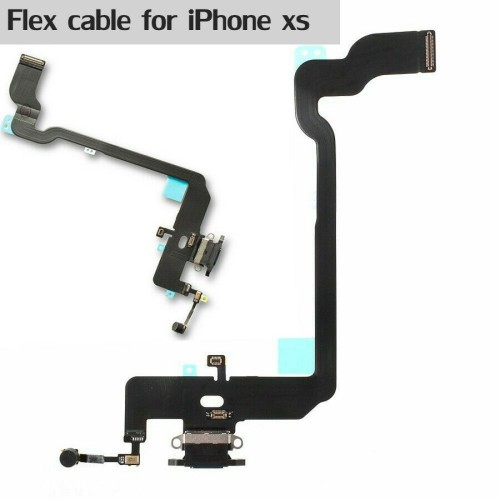
Decision table: debris, bent pin, or failed flex
| Symptom | Likely cause | Next action | Order port flex when… |
|---|---|---|---|
| Cable seats loosely, charges at an angle, intermittent | Compacted lint/debris | Clean per steps above; retest with known‑good cable | Cleaning + known cable still fails |
| One orientation works, the other does not | Bent/broken pin on centre tongue | Inspect under magnification; do not attempt to straighten | Pin damage visible |
| No charge at all with known cable, port looks clean | Failed charging flex or board‑level fault | Measure current draw; if zero, suspect board | Current draw present but charging fails |
| Charges but no data transfer | Data‑line damage on flex | Test data on computer; confirm with second cable | Data lines dead, charging intact |
| Microphone fails on calls (port‑mounted mic) | Flex connector unseated or damaged | Reseat flex; test call audio | Mic dead after reseat |
Use this table as a quick reference during triage. If the symptom matches more than one row, start with the least invasive action — cleaning — before moving to measurement or replacement. Record the row you followed on the job sheet; it creates a clear audit trail for the customer and any future technician.
When cleaning is not enough — parts path
If a known‑good cable still charges intermittently after thorough cleaning, the socket or its flex is the suspect. Measure current draw with a USB‑C meter: zero draw often indicates a board fault rather than the port. When current flows but charging remains unstable, or data lines fail while power works, order a replacement flex. Digi4u stocks model‑specific charging‑port flexes for iPhone and Samsung devices — browse the iPhone charging‑port range or the Samsung equivalents. Always verify the port’s condition under magnification before ordering; a bent pin is visible and is a clear reason to replace.
When using a USB‑C power meter, connect the meter between the charger and the device. A healthy port on a modern phone should negotiate at least 5 V / 3 A (15 W) or the appropriate Power Delivery profile. If the meter shows a steady 0 A, the fault is almost certainly upstream — either the flex is open‑circuit or the board’s charging IC has failed. A fluctuating current that never reaches the negotiated level suggests high resistance in the flex or a partially shorted data line. In either case, note the exact readings (voltage, current, negotiated PDO) on the job sheet before deciding on a flex replacement. Do not replace the flex solely because the customer requests it; confirm the electrical evidence first.

Liquid and corrosion — stop rules
Water, coffee, or any liquid in a USB‑C port demands a different workflow. Do not charge the device. Do not blow air into the port — that drives moisture deeper. Power off immediately. If the device has been submerged, treat it as a liquid‑damage repair: disassemble, inspect for corrosion on the flex and board, clean with 99 % IPA and a soft brush, then dry thoroughly. The wider process is described in our water‑damage treatment guide. Only after the port is bone‑dry and corrosion‑free should you attempt a charge test.
After the initial IPA clean, place the device in a sealed container with silica‑gel packets for a minimum of four hours, preferably overnight. Do not use heat guns or ovens; uneven heating can warp the flex and damage nearby components. When the port is re‑assembled, perform a visual inspection under a 10× loupe for any remaining green‑white crust on the pins. If pitting is visible, the flex must be replaced — corrosion on the data‑line pins rarely recovers even after cleaning. Record the drying time, the number of IPA passes, and the final visual assessment on the job sheet.
| Sign | Meaning | Action |
|---|---|---|
| Green/white crust on pins | Active corrosion | IPA clean, dry, retest; replace flex if pins pitted |
| Discoloured plastic around port | Heat from short | Inspect board; likely flex + board damage |
| Sweet/chemical smell | Liquid residue | Full liquid‑damage workflow |
| Intermittent charge after drying | Residual corrosion on data lines | Replace flex; data lines rarely recover |
After‑clean verification checklist
- Charge both orientations: USB‑C works either way up; one orientation failing indicates a pin or data‑line fault. Plug the cable in, note the orientation, then flip and repeat. Record the voltage and current for each orientation on the job sheet.
- Known‑good cable at expected rate: Confirm 5 V/3 A or negotiated PD voltage. Use a USB‑C power meter to log the negotiated PDO; a drop to 5 V / 1 A after a few seconds signals a resistance issue.
- Data transfer: Connect to a computer; device must enumerate, not just charge. Open a file‑transfer window and copy a 100 MB test file both ways. Verify transfer speed exceeds 20 MB/s for USB 2.0 or 300 MB/s for USB 3.1 Gen 1.
- Microphone test (if on flex): Place a call; verify uplink audio. Record a short voice memo and play it back to confirm clarity. If the microphone is on a separate flex, note that the port flex replacement will not resolve a mic fault.
- Thermal check: Ten minutes charging — port and cable should stay cool. Use an infrared thermometer; any spot above 40 °C warrants a re‑inspection for hidden shorts.
Record each result on the job sheet. A port that passes all five checks rarely returns with “it charged for a day” complaints. Attach the power‑meter screenshot and the data‑transfer log to the digital work order for future reference.
Prevention and customer briefing
- Recommend a case with a port cover in dusty environments.
- Advise against charging with cables bent sharply at the plug — this spreads the socket contacts over time.
- If the customer’s own cable shows worn or splayed pins, show them the damage and explain the risk; a replacement cable is a service, not a sales pitch.
- Note the cleaning, test results, and cable used on the job sheet. If the fault returns, the record explains the charge.
Customer briefing script (verbal): “I’ve cleaned the charging port and tested it with a calibrated cable. It now charges in both orientations, transfers data at full speed, and the microphone works. I’ve logged the readings on your receipt. To keep it working, try to keep the port covered when you’re not charging, avoid forcing the cable, and replace any cable that looks frayed. If you notice the cable only works at a certain angle again, bring it back and we’ll re‑inspect — there’s no charge for a follow‑up check within 30 days.”
Job‑sheet recording template:
- Device model & IMEI
- Date & technician initials
- Tools used (pick, brush, air, IPA)
- Number of cleaning passes
- Pre‑clean symptom description
- Post‑clean verification results (orientation, current, data, mic, temperature)
- Cable part number used for test
- Recommendation given to customer
- Follow‑up date (if any)
When not to sell a port immediately: If the device shows zero current draw on a known‑good cable after cleaning, the fault is likely board‑level. Replacing the port flex in this scenario will not resolve the issue and will waste the customer’s money. Explain the measurement, show the meter reading, and advise a board‑level diagnostic or a referral to a microsoldering specialist. Only proceed with a flex sale when the meter confirms current flow but charging remains unstable, or when data‑line or microphone faults are isolated to the flex.
Common cleaning mistakes that damage ports
| Mistake | Result | Avoid by… |
|---|---|---|
| Pushing lint deeper with a wide tool | Worse connection, possible pin damage | Lift along the wall with a thin plastic pick |
| Using metal pins or needles | Bent/short contacts | Plastic or wood only |
| Long compressed‑air blasts | Dust driven into device | Short bursts, upright can |
| Wet solvent left on contacts | Residue attracts dust, corrosion | Dry fully before power on |
| Forcing a cable that resists | Pin damage, spread contacts | Stop; inspect and clean first |
| Using a cotton bud that leaves fibres | Fibres bridge pins, cause shorts | Use lint‑free swabs only |
| Applying IPA to a dry port without corrosion | Unnecessary moisture, longer dry time | Reserve IPA for visible corrosion only |
| Blowing with mouth | Saliva introduces conductive residue | Use compressed air or a hand‑held blower |
FAQ
Can I clean a USB‑C port with a toothpick?
A wooden or plastic toothpick is acceptable for lifting lint from the side walls. Never use a metal toothpick or any metal tool — they bend or short the centre‑tongue pins.
Is compressed air safe for USB‑C ports?
Short, upright bursts are safe. Long blasts or tilting the can spray propellant liquid into the port, which leaves residue and can drive debris deeper.
Why does my phone charge but not transfer data after cleaning?
The power pins may be clean while the data‑line pins (D+/D− or SuperSpeed pairs) remain corroded or bent. Test with a known‑good cable on a computer; if data still fails, the flex usually needs replacement.
Should I use isopropyl alcohol on the port contacts?
Only 99 % IPA on a lint‑free swab, and only when you see green/white corrosion. For routine lint removal, dry tools are sufficient. Allow the port to dry completely before applying power.
How do I know if the charging port flex needs replacing?
If cleaning and a known‑good cable still give intermittent charge, one‑orientation charging, no data transfer, or a dead microphone (on flex‑mounted mics), the flex is likely faulty. Confirm with a USB‑C current meter before ordering.
Digi4u Limited, Cardiff, has supplied UK technicians and customers with quality phone parts and tools since 2011. For model‑specific charging‑port flexes, visit our iPhone charging‑port hub or browse the wider repair blog for more USB‑C and liquid‑damage guides.