


This guide is written for someone buying a part for a repair, whether you plan to fit it yourself or hand it to a technician. It helps you reach the right product family before you compare screen type, battery option or price.
Identify your iPhone in three steps
- Open Settings > General > About.
- Record the exact Model Name.
- Tap Model Number to reveal the A-number, then confirm both identifiers against the part listing.
What is the fastest reliable way to identify your iPhone?
Use Settings first; use the A-number to confirm the hardware variant.
Open Settings > General > About. Read the entry labelled Model Name, then look at Model Number. Apple may initially show a part number beginning with a letter; tap it to display the A-number. Compare that A-number with Apple’s live Identify your iPhone model reference.
Use both pieces of information. The familiar name tells you the generation, while the A-number helps distinguish regional or hardware variants. Before buying, check that the seller’s compatibility list explicitly includes your model. Digi4u organises its Apple replacement parts by device family, but the buyer still needs to select the exact model and part type.
Where do you find the model number in Settings?
It is in Settings under General and About.
The About screen contains the model name, model or part number, serial number and other identifiers. You normally need only the model name and A-number to begin matching a part.
Do not copy the first code you see without checking its format. A sales part number and an A-number serve different purposes. The A-number begins with the letter A followed by four digits, while a sales configuration code uses a different pattern. Tap the Model Number field to switch between them.
If the phone has previously been repaired, the same About screen may show Parts and Service History on supported models and software versions. Apple explains which components may appear and what labels such as Genuine, Used, Unknown or Unverified mean in its Parts and Service History guidance. That history can inform a repair discussion, but it does not replace the model check required for ordering.
How can you identify an iPhone that will not turn on?
Use the printed code and physical layout together.
Depending on the generation, an A-number may appear near the SIM tray, in the SIM-tray opening or around the connector area. Apple’s model guide shows where to look.
Good lighting and magnification help because the printing can be small. Remove the case, inspect the phone without forcing any component, and record the code exactly. If the rear housing or SIM tray may have been replaced, the printed number could belong to a replacement exterior rather than the internal device. In that situation, compare several clues: camera arrangement, connector type, button positions, dimensions and any original packaging.
If the evidence conflicts, pause the purchase. Send clear photographs and every identifier you can find to the supplier or repairer. An incorrect screen or battery can look convincing in a photograph yet fail at the connector, frame or sensor stage.
Why do regional and generation codes matter?
They can separate parts that are not interchangeable.
An iPhone name may cover more than one A-number, and listings may restrict compatibility to particular variants. Always follow the compatibility statement for the exact part.
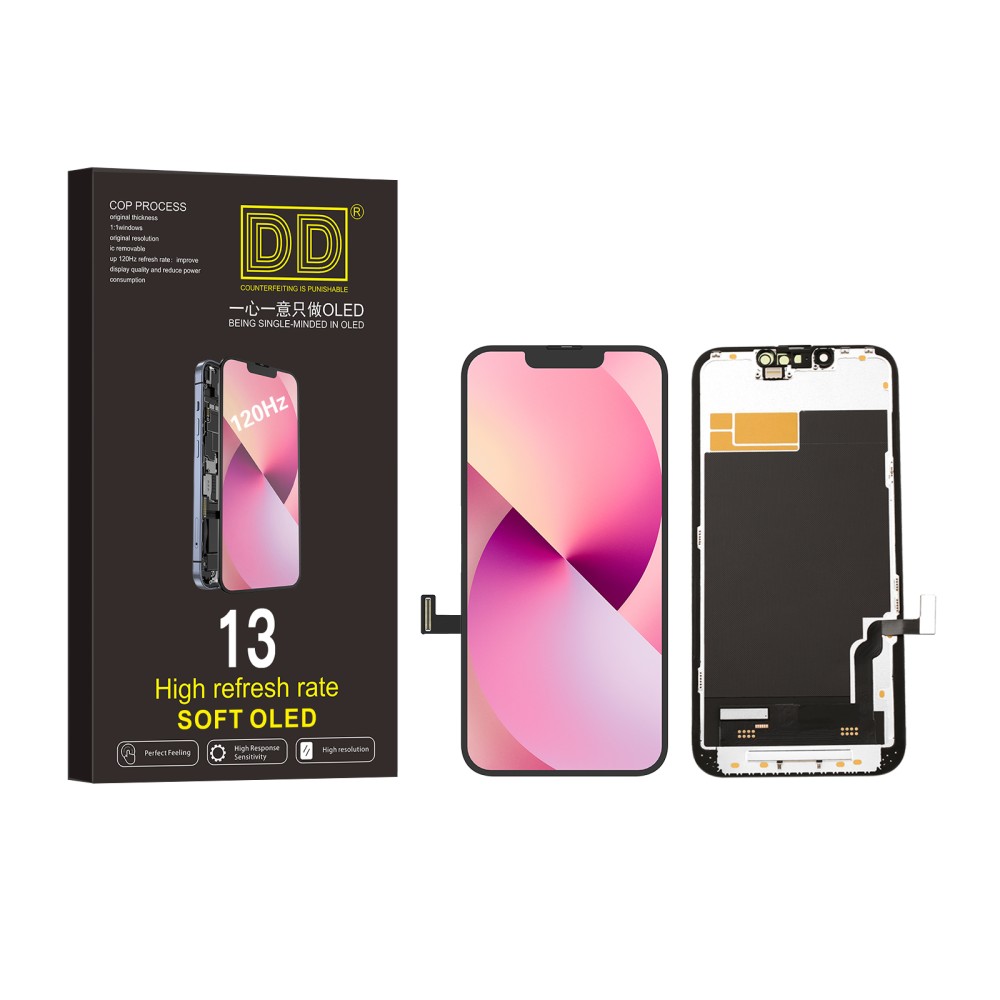
Generation is the first boundary: an iPhone 13 part is not automatically compatible with an iPhone 13 Pro, 13 Pro Max or 13 mini. Regional codes can introduce further differences. The safest approach is to treat the seller’s named model and code list as a specification, not as a suggestion.
This matters most when listings bundle several models together. A combined listing can be legitimate when the component is shared, but you should still choose the correct option before adding it to the basket. If the listing omits your exact model, ask rather than assuming that a similar-looking device is covered.
Which details should match before you order?
Match the model, part type and listed variant.
A correct phone name is only the first check. The replacement part must also match the repair you are carrying out and the configuration described on the product page.
| Check | What to compare | Why it matters |
|---|---|---|
| Device identity | Model name and A-number | Separates generations and supported variants. |
| Part type | Screen, battery, charging port, camera or housing | Prevents ordering a related but different assembly. |
| Frame option | With frame or without frame | Changes installation work and supplied components. |
| Display option | LCD, hard OLED, soft OLED or another stated grade | Affects the buying decision even when fit is compatible. |
| Colour and finish | The option selected in the listing | Some exterior parts are colour-specific. |
| Included items | Part only, tools, adhesive or protector | Avoids assuming accessories are included. |
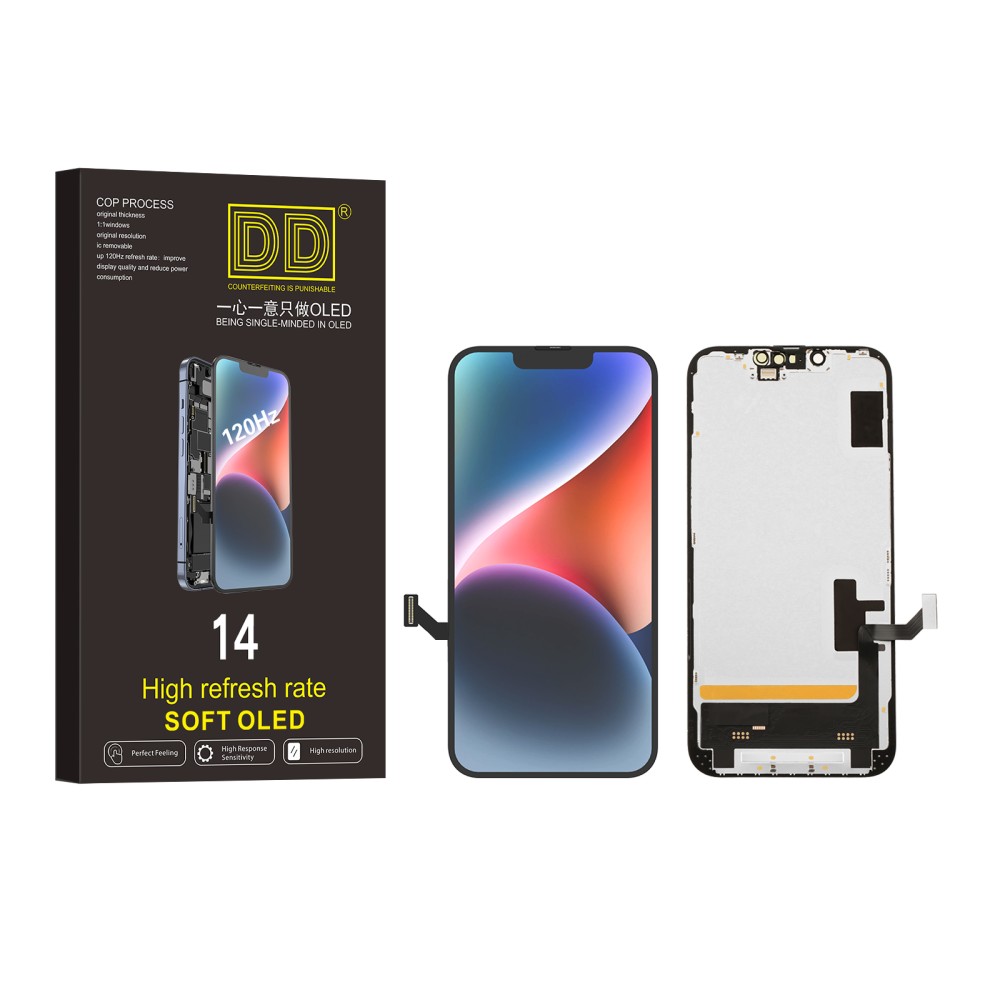
For screens, begin with the iPhone screen replacement category. Once the model is confirmed, compare soft OLED, hard OLED and LCD replacement options rather than treating every compatible screen as the same grade. For batteries, use the dedicated iPhone battery category. The category narrows the search; the model-specific listing completes it.
What are the most common ordering mistakes?
Most errors come from using one weak clue.
Screen size, colour, an informal phone name or a photograph can all mislead when used alone. Confirm at least the model name and A-number.
Another common mistake is confusing the phone’s repair history with its identity. A message about a replaced display tells you something about that component, not which replacement part fits next. Apple’s guidance on genuine iPhone displays also notes that display performance and functions can be affected by the part and repair process. Compatibility is therefore necessary, but it is not the only buying criterion.
Finally, do not begin disassembly merely to identify the phone unless you already have the knowledge and tools to do it safely. Apple describes Self Service Repair as intended for people experienced with electronic-device repairs; its Self Service Repair guidance starts with the model-specific repair manual.
Pre-order compatibility checklist
A short written check is more reliable than trying to remember what you saw across several tabs. Complete it before payment, especially when the phone is damaged or has been repaired before.
- Record the Model Name from Settings, packaging or another reliable source.
- Reveal and record the A-number.
- Confirm the exact part type and repair symptom.
- Read every model listed in the product’s compatibility section.
- Choose the intended quality, frame, colour and bundle option.
- Check whether specialist installation or post-repair software may be required.
- Save the product page and order details for the person completing the repair.
For complex repairs, consult the relevant manual or a professional. Apple publishes model-specific repair documentation, such as its iPhone 14 Repair Manual, which shows how strongly procedures and tools depend on the device.
What should you send a supplier when you are unsure?
Send identifiers, symptoms and clear photographs.
A concise evidence pack lets the supplier check compatibility without guessing. Do not send only a message saying that the phone is an “iPhone Pro” or that the screen is “about six inches”.
Include the model name, A-number, the part you need and the fault you are trying to fix. Add clear photographs of the front, back and any visible printed code. If a technician has already opened the phone, include the connector or component number only when it can be photographed safely. Mention previous repairs and any Parts and Service History message.
Your goal is not to diagnose every fault before ordering. It is to give the supplier enough reliable information to say whether a listed part matches the phone. If the answer remains uncertain, do not place the order until the device can be identified properly.
FAQ
How do I identify which iPhone model I have?
If the phone works, open Settings, choose General, then About, and read the Model Name. Tap Model Number if you need to reveal the A-number. Compare both identifiers with Apple’s model list before ordering a replacement part.
How can I identify an iPhone that will not turn on?
Check the SIM-tray area, connector area or rear housing for a printed model number, depending on the generation. If the housing may have been replaced, treat that number as a clue rather than final proof and compare the physical layout with Apple’s identification guide.
Is the part number the same as the iPhone model number?
No. The part number shown first in Settings identifies a sales configuration, while the A-number identifies a hardware model family or regional variant. Tap the number in Settings to switch views, then use the A-number when a replacement-part listing asks for it.
Can two iPhones with the same screen size use the same replacement screen?
Not necessarily. Matching screen size does not confirm connector position, frame shape, sensor layout or software compatibility. Order against the exact model and generation stated by the seller, not against screen size or appearance alone.
Choose a part only after the model name, A-number and product compatibility statement agree. If one of those checks is missing, pause and verify it rather than trying to make a similar-looking part fit.