


How to Identify Your Exact iPhone Model Before Ordering a Part
Need this part? We stock tested replacement parts with same-day UK dispatch and a 12-month warranty.
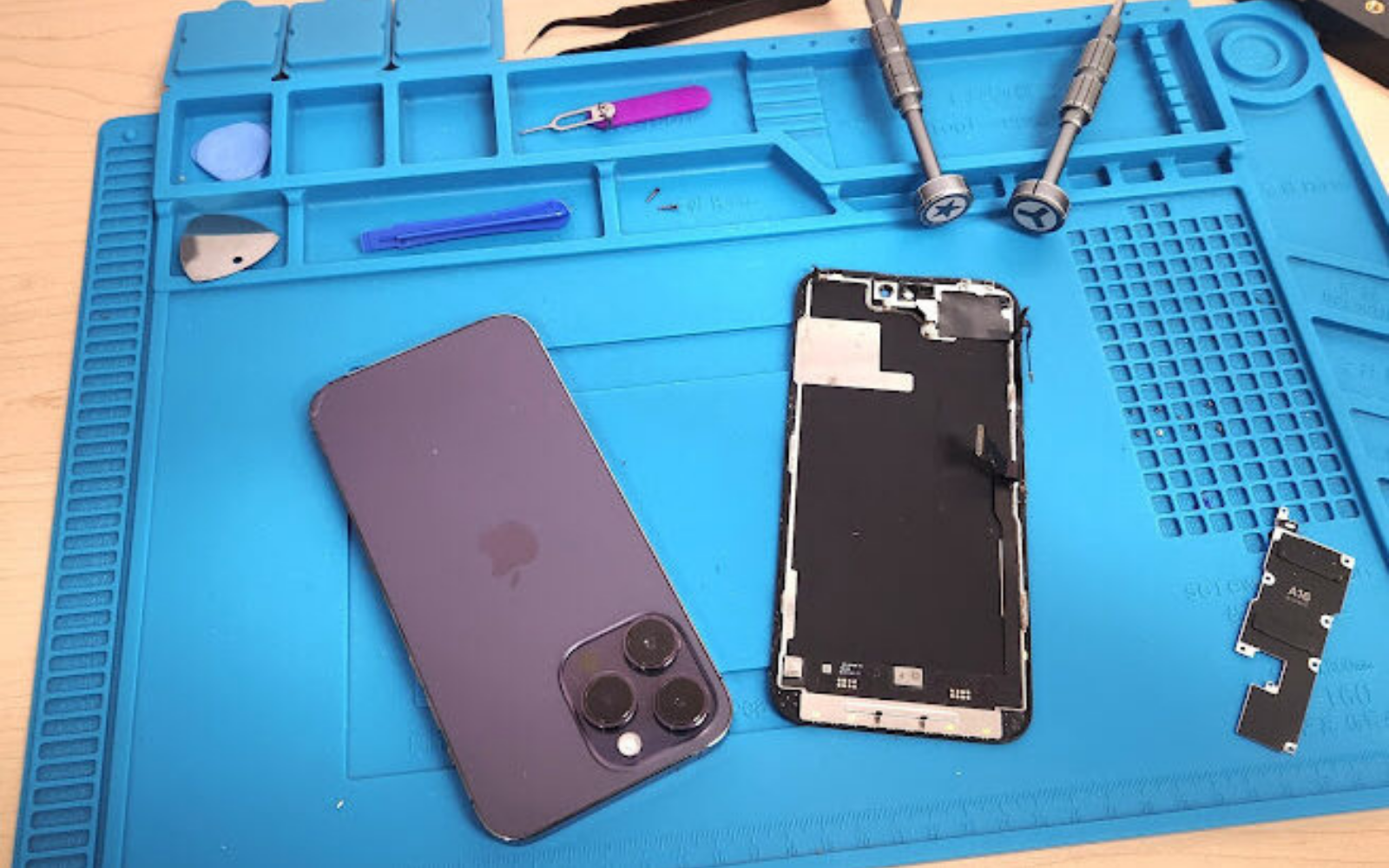
If you are ordering an iPhone screen, battery or other replacement part, identify the exact device before comparing listings. The quickest reliable method is Settings > General > About: record the Model Name, tap Model Number to reveal the A-number, then compare both with Apple’s model reference and the seller’s compatibility list.
Last updated:
Identify your iPhone before you order
iPhones from the same generation can look very similar while using different screens, batteries, camera layouts, connectors or frames. An iPhone 13 is not automatically the same as an iPhone 13 mini, iPhone 13 Pro or iPhone 13 Pro Max. Selecting a part because the listing name looks close can therefore lead to the wrong purchase.
The safest approach is to establish the phone’s identity first, then match the component details. For most working phones, use the Model Name and A-number in Settings. The Model Name gives you the familiar device description, while the A-number helps confirm the hardware variant. For a phone that will not power on, combine any printed code with physical clues and original packaging.
Digi4u stocks tested Apple replacement parts organised by device family. You must still select the exact model and part type before ordering. Same-day UK dispatch is available for orders placed before 4:00 PM Monday to Friday, subject to the company’s ordering process.
| Identifier | Where to find it | What it unlocks for ordering |
|---|---|---|
| Model Name | Settings > General > About | Identifies the familiar iPhone generation and model description to begin matching a listing. |
| A-number | Settings > General > About; tap Model Number to switch format | Confirms the hardware variant. Compare the A-number with Apple’s model list and the seller’s compatibility information. |
| Serial number, IMEI or EID | Settings, the SIM tray or the original packaging | Provides support identity when discussing the phone, but does not replace the A-number and Model Name for parts compatibility. |
| Printed tray or housing code | Near the SIM tray, SIM-tray opening or connector area, depending on the device | Can help identify a phone that will not turn on. Treat it as untrusted if the housing or tray may have been swapped. |
Settings path: Model Name and A-number
For a phone that turns on, Settings is the fastest reliable path for iPhone model identification before ordering. Open Settings > General > About. Find the entry labelled Model Name and record it exactly. Then find Model Number.
The Model Number field may initially display a sales or configuration part number. That format does not look like the A-number used to identify the hardware model. Tap the Model Number field once to switch formats. The A-number begins with the letter A followed by four digits. Copy the A-number carefully, including the letter.
Next, compare the Model Name and A-number with Apple’s Identify your iPhone model list. Use the official reference to check that the two identifiers agree. Then open the replacement-part listing and confirm that its compatibility information includes the exact model or A-number required by the seller.
Do not use the first code you see on the About screen without checking which format it represents. A sales/configuration number and an A-number are not interchangeable. If you copy the wrong one, the supplier may be unable to confirm the correct part, particularly where regional versions have different identifiers.
The About screen may also contain the serial number, IMEI and EID. Apple explains where these support identifiers can be found in Settings, on the SIM tray and on the packaging. They are useful when contacting support or discussing a specific handset, but the Model Name and A-number remain the key starting points for ordering a compatible part.
If the phone has been repaired, the About screen may include Parts and Service History on supported models and software versions. Labels can include Genuine, Used, Unknown or Unverified. These labels provide useful context for a repair conversation, but they do not replace the model check needed before buying a screen, battery or other component.
How to identify a phone that will not turn on
When an iPhone will not power on, begin with the printed information Apple documents for the relevant model. Depending on the generation, a code may appear near the SIM tray, in the SIM-tray opening or around the connector area. Inspect the phone in good lighting and use magnification if the print is small. Record every character exactly rather than relying on memory.
Remove the case before inspecting the exterior, but do not force the SIM tray or any other component. A printed code can be useful, but it is not always conclusive. If the rear housing or SIM tray has been replaced, the visible code may belong to the replacement exterior rather than the internal device.
Where a swap is possible, compare several physical clues together:
- the camera arrangement;
- the connector type;
- the button positions;
- the overall dimensions and frame shape; and
- any original packaging or documentation available.
If these clues conflict, pause before ordering. Do not choose a part because the phone resembles a particular generation. Send clear photographs of the front, rear, camera area, connector, SIM-tray area and any printed codes to the supplier. Include the packaging information if it is available. A supplier can then review the evidence before you commit to a listing.
Why generation and regional codes matter for parts
Generation boundaries are important because model names are often presented as a family. An iPhone 13 part is not automatically suitable for an iPhone 13 mini, 13 Pro or 13 Pro Max. The same principle applies across other generations: the suffix in the model name can indicate a different physical design and a different part requirement.
Regional A-numbers can further restrict a listing. Two phones that are described with a similar consumer-facing name may still require you to follow the seller’s specific compatibility list. Always compare the A-number you verified with the model information shown on the product page.
Part type is a separate decision from device identity. For example, a compatible replacement display may be offered in different grades. Soft OLED, hard OLED and LCD are different buying grades even when the model fits. Read Digi4u’s guide to soft OLED, hard OLED and LCD replacement screens before selecting the display grade.
These options should not be treated as interchangeable simply because they are listed for the same iPhone. First confirm the model. Then compare the screen grade, frame arrangement and included items shown for the particular product.
For a starting point, browse the iPhone screen replacement section only after you have verified the handset identity. If you are replacing a battery, use the iPhone battery section and apply the same model-checking process.
Apple Self Service Repair is intended for people experienced with electronic-device repairs. Digi4u is a parts supplier, not Apple Self Service Repair. If you are not confident about opening the device or identifying the required component, provide the evidence to a repair professional or supplier before ordering.
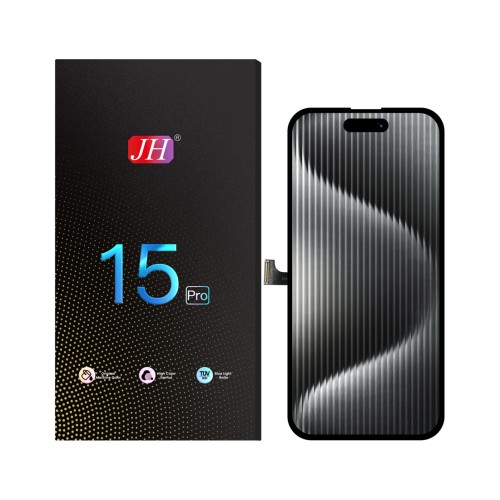
Pre-order compatibility checklist
Once you have identified the handset, check the listing in the same order every time. The general iPhone model identification guide can help if you need broader help recognising the device, but this checklist is focused on ordering the correct replacement part.
| Check before ordering | What to confirm |
|---|---|
| Device identity | Match the exact Model Name and A-number. Check any regional compatibility notes in the seller’s listing. |
| Part type | Confirm whether you need a screen, battery or another component, and select the correct device family. |
| Frame option | Check whether the part is supplied with the frame or without it, as shown in the product description. |
| Display grade | For a screen, choose the stated Soft OLED, hard OLED or LCD grade rather than assuming all compatible displays are the same. |
| Colour or finish | Confirm the listed colour or finish where the part includes a visible frame or housing component. |
| Included items | Read what the listing says is included and do not assume tools, small components or additional parts are supplied. |
Keep a copy of the verified Model Name and A-number with your order notes. This makes it easier to check the listing again if you compare several replacement options or need to contact the supplier later.
Common ordering mistakes
Choosing by screen size or colour
Screen size and colour are not enough to identify an exact iPhone model. Similar-looking devices can use different connectors, cameras, frames or batteries. Treat appearance as supporting evidence only and begin with the identifiers stored on the phone.
Confusing the sales number with the A-number
The About screen can show a sales/configuration part number first. Tap Model Number to reveal the A-number before copying it. The A-number has an A followed by four digits and is the code you should compare with Apple’s model reference.
Ordering for the family name only
Do not stop at “iPhone 13” or another broad generation label. Confirm whether the handset is the standard model, mini, Pro or Pro Max, then check the exact compatibility notes for the part.
Ignoring the display grade
A listing can fit the verified model while still offering different display grades. Check whether the product is Soft OLED, hard OLED or LCD and choose according to the repair requirement and the description supplied.
Trusting an unverified exterior
If a dead phone has a swapped housing or SIM tray, a printed code may be misleading. Compare the code with the camera layout, connector, buttons and packaging. If they do not agree, ask the supplier before purchasing.
What to send a supplier when you are unsure
Give the supplier enough information to review the whole identification process. For a working phone, send the exact Model Name and A-number, along with the part type you want to buy. If relevant, include the regional information shown by the seller’s compatibility list.
For a phone that will not turn on, send clear photographs of the front and rear, camera layout, connector, buttons, SIM-tray area and any printed codes. Add photographs of the original packaging if available. Explain whether the housing or SIM tray may have been replaced, and identify any evidence that conflicts.
For a screen order, state whether you are comparing Soft OLED, hard OLED or LCD options, and ask the supplier to confirm the required grade. Also ask about the frame option, colour or finish and what the listing includes. This gives the supplier a precise question to answer rather than a vague request for “an iPhone screen”.
Do not send only a serial number, IMEI or EID and expect it to identify the correct replacement part. Those identifiers are useful for support identity, while the Model Name and A-number drive the compatibility check. If the evidence remains uncertain, wait for confirmation before placing the order.
Frequently asked questions
How do I find my iPhone model number before ordering a part?
Open Settings > General > About and record the Model Name. Tap Model Number to switch from the sales/configuration format to the A-number, which begins with A followed by four digits. Compare both identifiers with Apple’s model list and then check the seller’s compatibility information before ordering.
Is the Model Name enough to order a screen?
No. The Model Name is a useful starting point, but you should also verify the A-number and compare it with the seller’s compatibility list. Then confirm the part type, frame option, display grade, colour or finish and included items. An iPhone generation name alone may cover several different models.
How do I identify an iPhone that will not turn on?
Look for printed codes near the SIM tray, SIM-tray opening or connector area, depending on the model, and record them accurately. If the housing or tray may have been swapped, compare the code with the camera layout, connector, buttons and packaging. Send photographs and all available identifiers to the supplier.
Do Parts and Service History labels tell me which part to buy?
No. Parts and Service History may show labels such as Genuine, Used, Unknown or Unverified on supported devices and software versions. These labels provide context about repaired components, but they do not replace the model check. Use the Model Name and A-number to establish compatibility before selecting the part.
What should I send Digi4u if I am unsure of the model?
Send the exact Model Name and A-number if the phone turns on. For a dead phone, provide clear photographs of the front, rear, camera layout, connector, buttons, SIM-tray area, printed codes and any packaging. Mention possible housing or tray swaps and specify the part type you want checked.